Banner Enrolment
Students register for a class and are enrol in your UR Courses site automatically.
Adding Enrolment from Banner
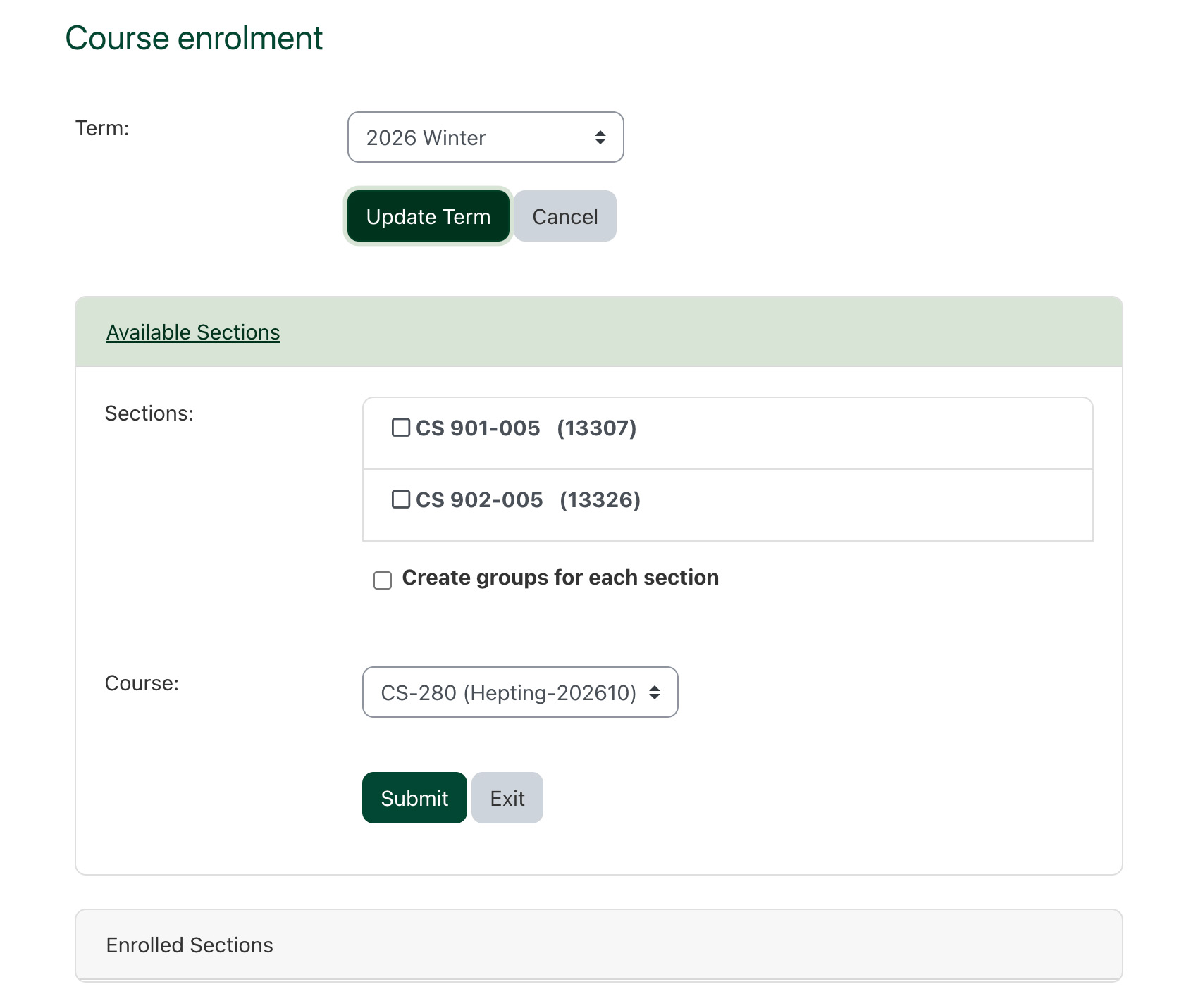
In the Course enrolment section choose the term under which your course will run, and click Update term.
You will see CRN values for each available section of your course. Select the one(s) you would like to add to your course. You can choose to create groups as well, with the Create groups for each section option.
Ensure the Course menu is displaying the correct UR Courses site name.
Any previously enrolled sections will be listed in the Enrolled Sections area. You can click this box to expand it and double-check the selections.
Click Submit.
Any previously enrolled sections will be listed in the Enrolled Sections area.
Once enrolment has been added successfully, there will be delay before it is reflected in your course. Banner enrolment sync happens three times every 24 hours, and your enrolment will appear after the next sync.