 Assigning Roles & Adding TA’s
When you have the Teacher or Instructional Designer role within UR Courses, you are able to assign roles to other users within the same course. There are 4 roles to choose from:
- Instructional Designer – same capabilities as the Teacher role, except they are not listed as teaching the course.
- Non-editing Teacher – can teach in courses and grade students, but may not add, remove, or alter content, resources, or activities
- Student – can view resources on the course page and participate in activities, but cannot alter resources or activities.
- Invited Guest – the same capabilities as a student, but Invited Guests will not show up in the gradebook.
To assign a role:
Within the Administration block, expand the Course Administration and Users sub-menu by clicking the triangles. Select Enrolled users.

Click on the Enrol users button to find members to assign a role.

Within the Assign roles dialog, choose the role you want the individual to have from the menu near the top.
In order to add a TA to the course, we're going to select the Non-editing Teacher role.

Use the Search field to find the individual you are looking for.
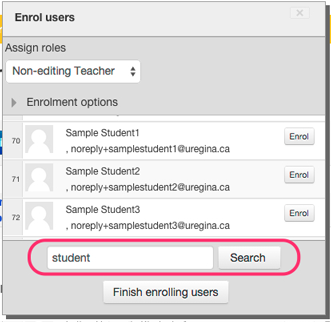
Once you've found that individual, make sure the correct role has been selected and click on Enrol.
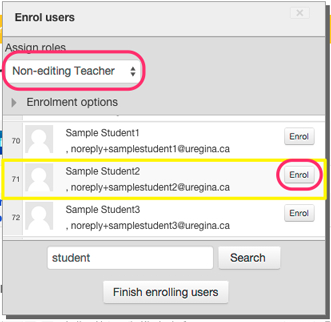
Once you’ve clicked Enrol, the individual will now appear within the list of enrolled users and be a participant in the course with the selected role. Once you are finished assigning roles, click the Finish enrolling users button to close the dialog.
