Record a New Clip
Clips is a part of Zoom, so it will look very familiar.
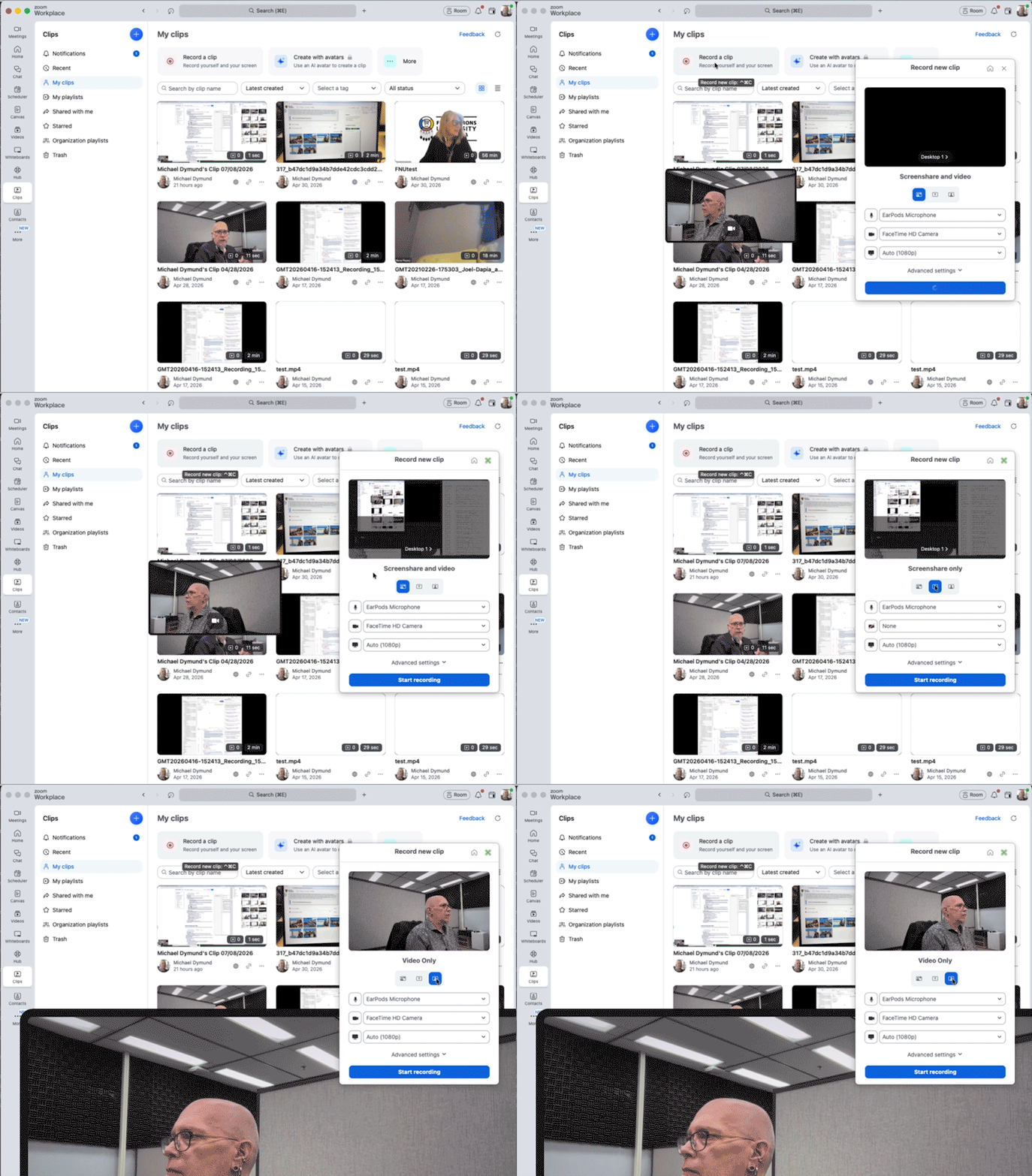
Open Clips
While signed in to your Zoom account click the Clips tab.
You may need to click More to see Clips.
Click Record clip. A new window, Record new clip will open. This window looks very similar to the window you see as you are joining a Zoom Meeting, and you can choose your microphone and camera in the same way. You will also see an option for video quality on a desktop or laptop.
In this window you can also choose to record Screenshare and video, Screenshare only, or Video only.
- Screenshare and video records your screen and your video at the same time. Just like sharing your screen in a meeting, you can choose which screen or specific window is shared.
- Screenshare records only your screen. With this option, like the Screenshare and video option, you can choose which screen or specific window is shared.
- Video records just your camera video. If you have multiple camera options, you can choose the camera (just like in a Zoom Meeting).
Advanced settings will change depending on what you’ve chosen to record, but will include things like backgrounds, noise surpression, and mouseclicks.