 Zoom for Students

Zoom makes it possible to have web conference meetings in your course using software supported by Information Services at the University of Regina. Zoom Video Management is also used to manage some of the video content in UR Courses and on other U of R sites.
Your Zoom account
Your Zoom account is automatically created when you start at the University of Regina. Sign in to uregina-ca.zoom.us using your @uregina.ca username and password, the same credentials you use for UR Courses, and other university services.
Zoom video in UR Courses
In order to have the correct access permissions to view Zoom video in UR Courses, sign in to uregina-ca.zoom.us using the same web browser being used to access videos within UR Courses.
Please ensure that you are accepting the authentication from Zoom and are not blocking third-party cookies due to browser privacy settings or ad blocker extensions.
If you are signed into Zoom with your @uregina.ca account and are still having issues accessing Zoom video within a course, please review the following tips for your allowing access in your web browser.
Safari
Ensure you have disabled any ad blockers or extensions that might interfere with third-party cookies.
- Click on Safari in the top menu bar, then select Settings (or Preferences).
- Click on the Privacy tab.
- Uncheck the box next to "Prevent cross-site tracking".
- Uncheck the box next to "Block all cookies" (if it is checked).
- Close the settings, refresh the course page, and try accessing the video again.
Chrome
Ensure you have disabled any ad blockers or extensions that might interfere with third-party cookies.
- Open Chrome and click the three dots in the top-right corner, then select Settings.
- Go to Privacy and Security, then click on Third-party cookies (or Cookies and other site data).
- Ensure "Block third-party cookies" is turned off, or choose "Allow third-party cookies".
Firefox
Ensure you have disabled any ad blockers or extensions that might interfere with third-party cookies.
- Open Firefox and click the three lines in the top-right corner, then select Settings.
- Go to Privacy and Security, then review your settings and browsing data information.
- If you have advanced settings enabled, ensure you have allowed an exception for Zoom.us.
- Close the settings, refresh the course page, and try accessing the video again.
Additional information is available below in the Troubleshooting Zoom Video Access section.
Download the Zoom app
The Zoom app is primarily used for Zoom meetings, but can also make recordings for use with media assignment submissions. It is not required for viewing Zoom videos.
You will be prompted to download the Zoom app the first time you try to connect to a Zoom meeting. Zoom is supported on desktop, tablet, and mobile devices, and can be downloaded by visiting https://zoom.us/support/download.
Sign in to Zoom with SSO
Sign in to Zoom with your web browser
University of Regina now requires the use of Single Sign On (SSO) for Zoom accounts.
When you are signing into Zoom in your web browser for Zoom videos and meetings within UR Courses, go to https://uregina-ca.zoom.us.

You will need to be logged in to Zoom in your browser using this method to use Zoom Video in UR Courses.
Sign in to the Zoom app
Alternately, when you are signing into the Zoom application, on Zoom's Sign in screen click the SSO button.

If you are prompted for a domain name, enter uregina-ca* (the rest of the field will include .zoom.us) and click Continue.
* note that this is a hyphen, not the traditional dot.

You will be redirected to University of Regina's Central Authentication Service page. Enter the username and password that you use for all of your other U of R online services. If your account is enrolled in MFA, you may be asked to complete a DUO Push as well.
Viewing Zoom Video with your course
In order to view Zoom videos within your courses you will need to sign in to your University of Regina Zoom account following the steps above. If you are signed in Zoom on your device but not through UR Courses and you see this message, click the Sign In button to sign in to Zoom within UR Courses as well.

After a few seconds the page will reload and you should be able to view the video.
If after signing in you see this message, you may not have access to view the video.

If you believe that you should have access to the video, review the Troubleshooting Zoom Video Access information below. If you are still having trouble, contact your instructor and/or Service.Desk@uregina.ca.
For further information on using the Zoom software, please refer to their support documentation at https://support.zoom.us.
If You Have Trouble Viewing Zoom Video in Your Course
Sometimes you may run into a problem accessing a Zoom Video in your course. Here are some common situations and things to try.
The first steps to try:
- Make sure that you are signing into your University of Regina Zoom account in your web browser. (Personal Zoom accounts will not have the appropriate access permissions)
- Refresh the page after signing in.
- Allow any requests to store cookies or ask for other permissions.
- Do not use a private or incognito browsing window.
- Disable any browser extensions that may block cookies or interfere with the Zoom session are disabled.
- If you still have trouble, try accessing the videos using another browser, such as Firefox or Chrome.
You See a "Allow embed access" Error Message
This happens when you web browser's privacy and security features limit how websites share sign-in information. These protections help prevent websites from tracking your activity across different sites without your knowledge.

By clicking the Allow embed access button you are granting Zoom permission in your browser to confirm that you are signed in to your University of Regina Zoom account. If you are already signed in to Zoom in your web browser you should now have access to the video.
In some cases, your browser may need additional permissions. If you are prompted to allow zoom.us to use cookies on urcourses.uregina.ca, click Allow.

Different browsers may use different wording, but allowing Zoom cookies on UR Courses is an important step in allowing access to the videos.
If you previously selected Block, or are unsure what you have selected, try these steps in order:
- Refresh the page and try again.
- Close and re-open your bowser, returning to the video.
- Try signing in to Zoom first, and then return to the video.
Many browsers remember privacy and security settings, so you may only need to grant permission once. However, the prompt may reappear if browser data is cleared, privacy settings change, or you use a different browser or device.
You See a “You Don’t Have Permission” Error Message
 There are three common reasons why you might see this error.
- The Zoom Video Management channel has not yet been published.
- Your enrolment in the class has not yet synchronized with Zoom Video Management.
- Zoom and UR Courses may be identifying different users.
1. The channel is not yet published.
Each of your courses has a corresponding Zoom Video Management channel that controls access to course videos. Even if you are enrolled in the course, videos cannot be viewed until the instructor publishes the channel and makes it available.
Trying to access the videos on an unpublished channel will display the “You don’t have permission.” error message.
In this situation, your browser, Zoom account, and sign-in are all working correctly.
2. Enrolment has not yet synced with Zoom Video Management
Just like your access to the class itself, UR Courses needs to sync with the course's enrolment.
Just like when you add or drop a class, change sections, or move off a waitlist into a course, your enrolment information must sync with each system before you have access. This synchronization happens three times each day, morning, afternoon, and evening.
This means that your access to Zoom Videos in a class my not be immediate after a change. But once UR Courses completes its next synchronization with Zoom Video Management you should expect to be able to view the videos.
3. Zoom and UR Courses may be identifying different users
If you are using a shared device, it can be hard to keep track of who's logged in to a browser session.
For example:
- You are signed in to UR Courses in the browser
- You sign in to Zoom in the browser
- You sign out of UR Courses but not out of Zoom
- Your sibling signs into UR Courses
Now UR Courses recognizes your sibling, but Zoom still recognizes you. This can result in a “You don’t have permission.” error message because the UR Courses account and the Zoom account are not the same user.
The recommended way to avoid this is to, when possible, use separate user accounts on the device for each user. This will keep sign-in information like cookies, saved passwords, browser settings, and personal information separate.
If separate user accounts are not an option:
- Sign out of Zoom completely
- Close all browser windows
- Re-open the browser
- Sign in to Zoom in your browser as above
- Return to the course to view the video
If your access issues persist, contact the IS Service Desk and provide:
- Your name
- Your student ID number
- Your course name and section, or a link to the course in UR Courses
- A screenshot of the error message
- The date and time of any recent registration change
Using Zoom Meetings within your course
If your course includes Zoom meetings, the instructor may have sent you a meeting link via email, forum post, or by including a link to the zoom meeting elsewhere within the course. Clicking the link will open the Zoom client to join the meeting, or prompt you to download the Zoom client if it hasn't been installed previously.
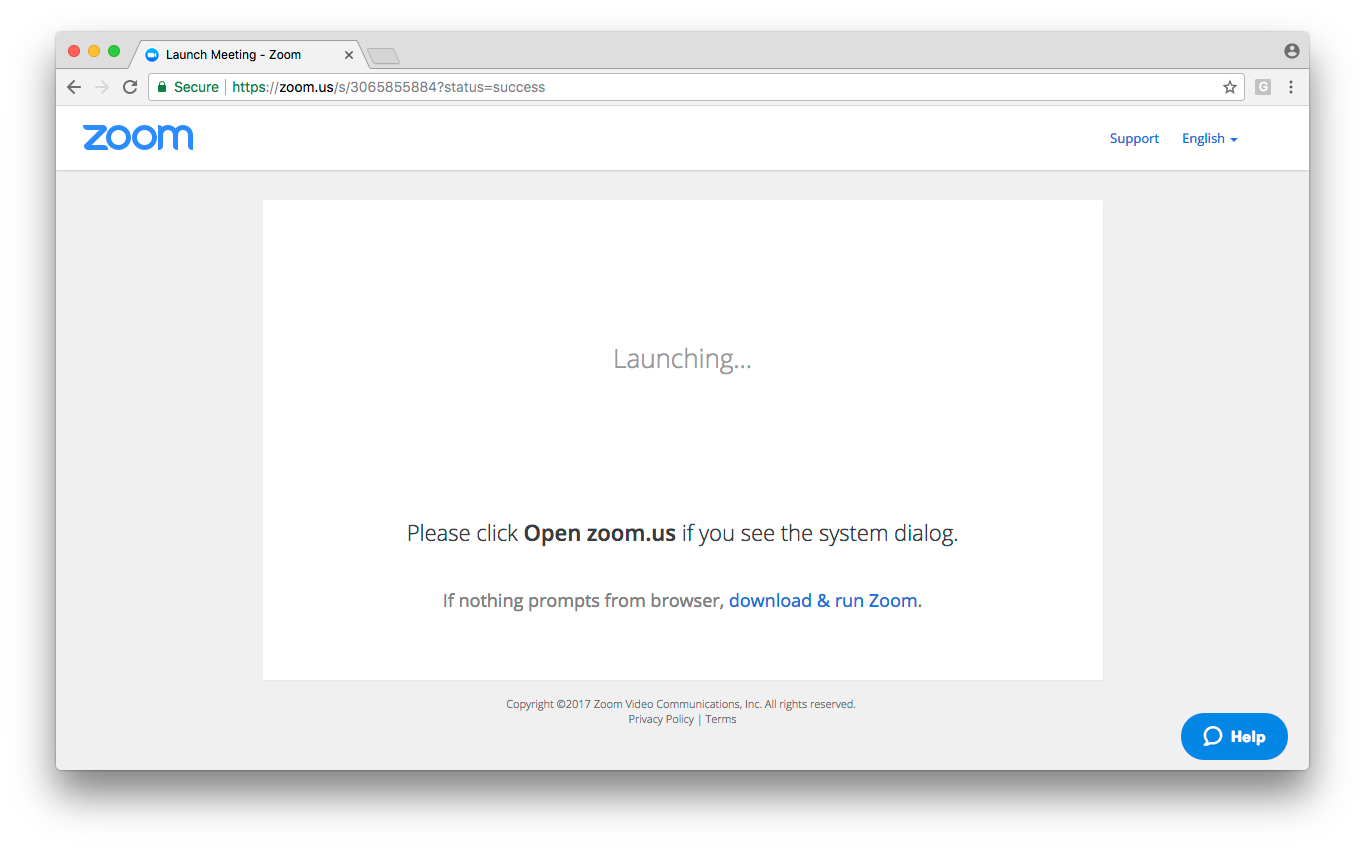
If your course uses the Zoom integration with UR Courses, you can check the course calendar, upcoming events, or within the activities block (if they are available within the course).


If you are having difficulty joining a meeting, please contact your instructor and/or Service.Desk@uregina.ca.
Submitting a Zoom video assignment
There may be times when you are asked to submit a video for an assignment within UR Courses. Learn more about submitting a Zoom video for an assignment.
Posting Zoom video in an activity
There may be times when you are asked to post a video to a forum or other activity. Assignments act a little differently, so be sure to learn more about using Zoom in an assignment if that is what you are looking to do.
Steps on how to include video in content using Zoom are outlined in the following video.