Macmillan Content
The Macmillan Content tool is a specific External Tool activity allowing students to interact with Macmillan Achieve activities.
The Achieve course you want to use in UR Courses will need to be set up first. Once there are items in your Achieve course you can assign them. There are a few things to note:
- Graded items should be assigned with a due date and points in Achieve before being added to UR Courses.
- You can also assign Achieve items as Ungraded if you’d like them to have a due date but not appear in the gradebook.
- If you do not assign an item in Achieve, you will still be able to add it to UR Courses as long as it is added to a unit in Achieve.
- Gradebook categories set in Achieve will not transfer to UR Courses, but you can set up grade categories in UR Courses that correspond to your Achieve gradebook categories.
In your Achieve course's settings, select the option to integrate your Achieve course with an LMS, and then select Moodle as your LMS.
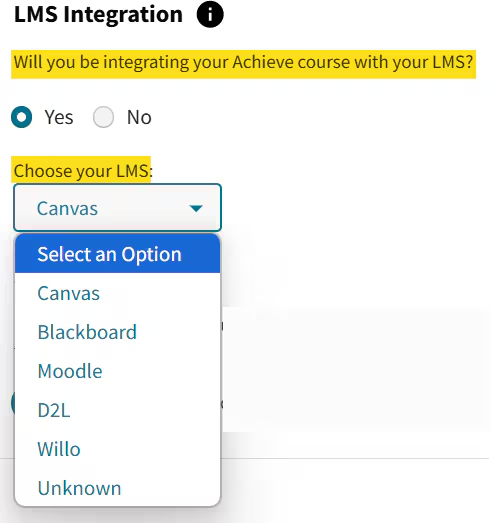
The Macmillan documentation has more on editing your Achieve course settings.
Adding Course Tools
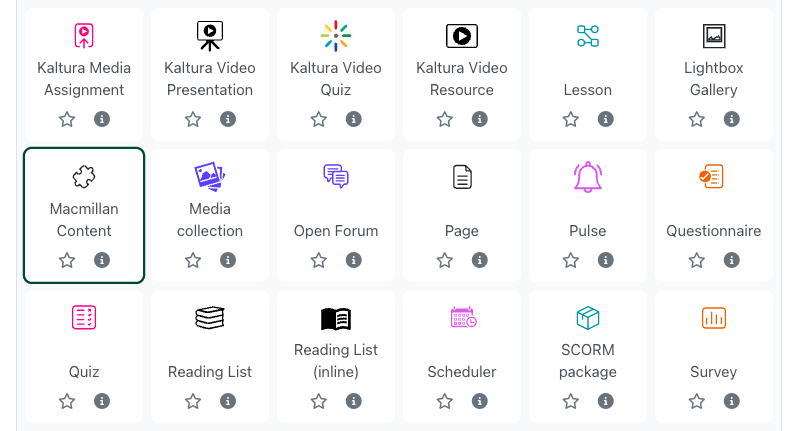
In UR Courses, put your course into Edit mode, and then add an activity to the section where you would like to include the Course Tools. Add the Macmillan Content activity, and configure the options on the New External Tool page.
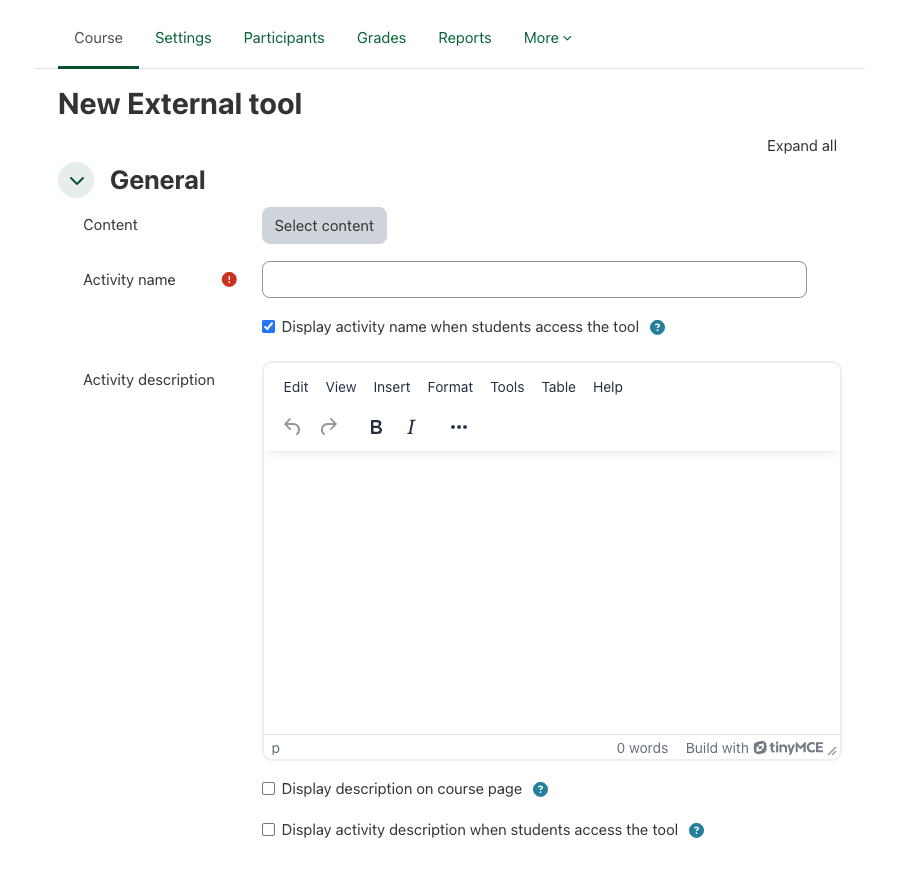
The 'Select content' button allows you to set up your Achieve connection to the Course Tools. You may need to enter your name and email address to connect your Macmillan Learning Profile.
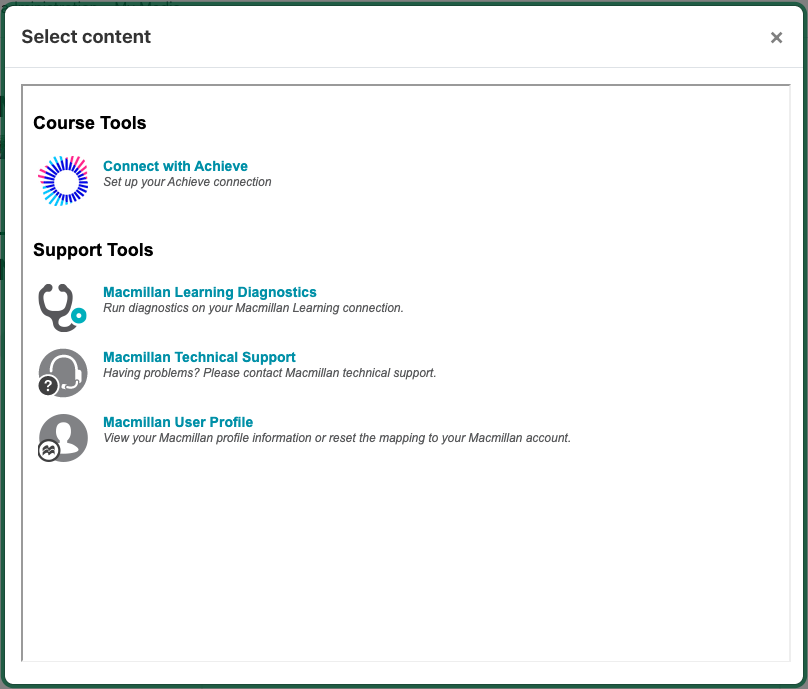 Note: This email address must be the same email address that was used to create the Achieve course.
Once you have successfully connected to Achieve you will be able to associate any of your existing Macmillan Learning courses with your course in UR Courses.
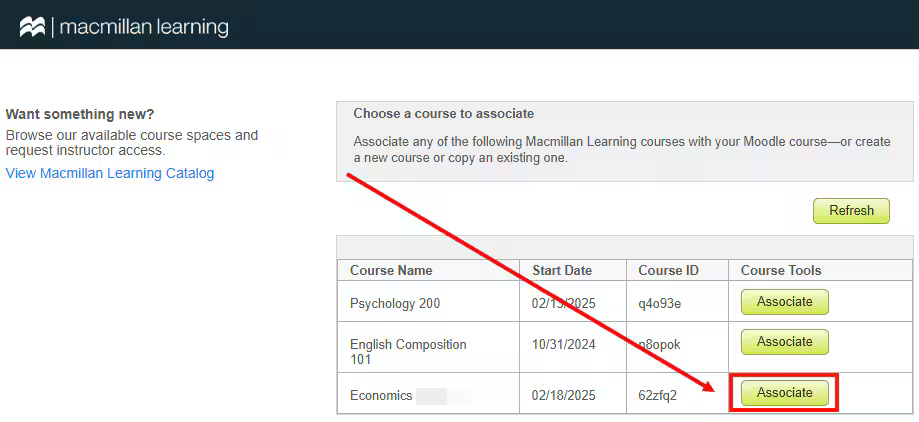
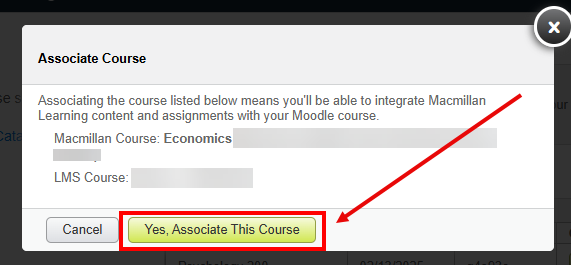
Once you've clicked OK your Achieve course is now linked to your course in UR Courses, and the Macmillan Course Tools are available in UR Courses.
Adding Achieve Content to Your Course
Now that Achieve and your course in UR Courses are linked you can include e-book links and assignments in your course.
Adding Assignments and e-Books
In UR Courses, put your course into Edit mode and add an activity to the section where you would like to include the links and choose Macmillan Learning LTI 1.3 TOC. Give your activity and choose Save and Display. When the activity loads you will be presented with the content that you are able to add to your course.
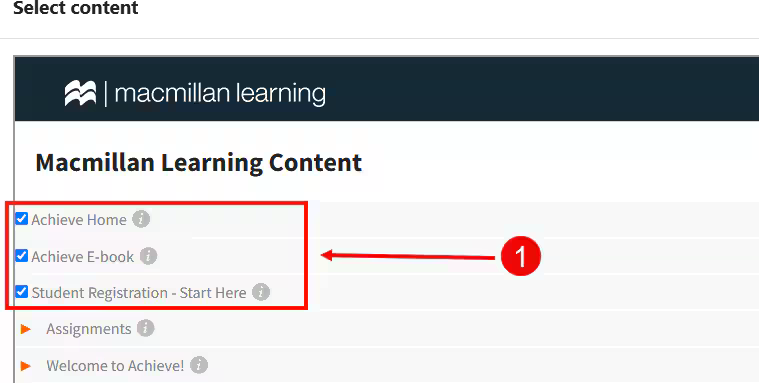
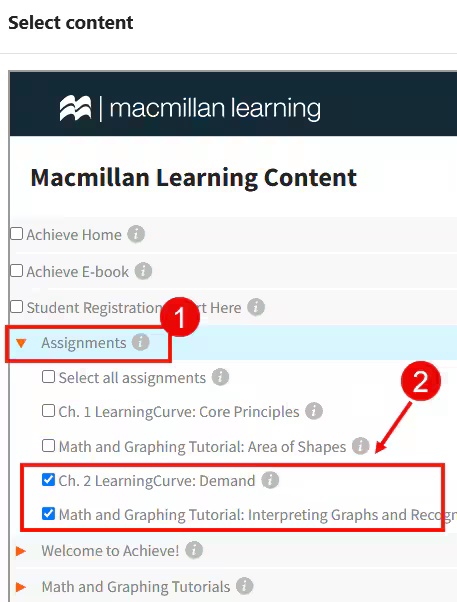
Items that have been assigned in your Achieve course with a due date can be added to Moodle. This creates links to those assignments in the Moodle course and syncs their grades with Gradebook. Put your Moodle course into Edit mode and add an activity to the section where you would like to include the assignments and choose Macmillan Learning LTI 1.3 TOC. The 'Select content' button will allow you to select the assignments you would like to add.
Enroling students
Now you are ready to add students to your course in UR Courses. To avoid any potential issues, enrol students through UR Courses, not through Achieve. Macmillan also recommends providing this help article to your students.
Grade sync
For a student's grades to sync with the Moodle gradebook, they must have connected their Moodle and Achieve accounts during the enrolment step above.
Grades sync automatically but can take several hours. An instructor can sync the grades manually.
Once a grade has been added to your Achieve gradebook it will be included in the next Moodle sync. If your Achieve gradebook is set to only show grades after a due date, students expecting to be able to see grades for work they've completed will not see their grades, and may be confused.
Due dates, points, and manually entered or edited grades for Achieve items must be set in Achieve, not Moodle. These items set in Moodle will be overwritten by data synching from Achieve. After changing points or grades in the Achieve course, perform a grade refresh to sync the changes to Moodle.
Gradebook calculations, like dropping lowest scores or weighted percentages, must be set in Moodle. Extra credit assignments made in Achieve will not automatically transfer to Moodle, but can be set up following these instructions.